Floorline documentation
What Floorline does, how an operator connects it, and how it keeps each operator's data apart.
Overview
Floorline is a live chat for online casino operators. They add it to their player website with one script tag and to their backoffice with one iframe. Players reach a support agent straight away, without signing up, and agents can answer players who have already left: the reply waits in the chat, with an unread badge, until the player comes back.
One Floorline server serves many operators. Each operator can run several player websites, each with its own look, and answers all of them from one inbox.
How it works
The operator keeps their own website and backoffice. Floorline runs on its own server and appears inside both.
Every message is saved in Postgres first and then pushed live to everyone looking at that conversation. Redis carries the "something changed" signal, so any number of API servers can run side by side. A player who is offline simply gets nothing pushed; the message waits for their next visit.
Features
| For | What they get |
|---|---|
| Players | Chat at once as a guest. Once logged in, one conversation on every device. Replies sent while away wait with an unread badge. Send screenshots and receipts as images. |
| Agents | One inbox for every website, with waiting times and assignment. Message players who are offline. Saved replies, images and rich cards. Light or dark, chosen per agent or matched to the backoffice. Hide a message from the player while the original stays on record. |
| Admins | A floating bubble or a full-page chatroom per website, with its colours (light, dark, the player's device or the casino's own background), welcome message or card, and opening hours. A card designer with blanks agents fill in. Team, saved replies and the websites allowed to show the chat. |
| Developers | One script tag, one iframe, and optionally two short server functions to recognise players and sign staff in. Snippets come ready to copy in PHP and Next.js. |
Security
Many operators share one server, so the separation between them is enforced by the database itself, not only by application code.
| Safeguard | Protects against |
|---|---|
| Postgres row-level security: each request runs as one operator, and the database refuses other operators' rows | A bug or crafted request exposing another operator's chats |
| Every link between tables includes the operator | Data mixed across operators, even by mistake |
| Messages can be added but never edited or deleted; "delete" only hides a message from the player | Disputes about what was said, and tampering |
| Player and staff sign-ins signed with secrets only the operator's server holds; staff links last at most 5 minutes and work once | Someone pretending to be a player or a staff member |
| Each website and backoffice address must be on the operator's allowed list, enforced by the browser | Copies of the chat or agent screen on look-alike sites |
| Argon2 password hashes, hashed login tokens, AES-256-GCM encrypted operator secrets, lockout after repeated wrong passwords | A stolen database copy or password guessing |
| Images checked by their contents (PNG, JPEG, GIF, WebP only) and shown through expiring links | Malicious files and leaked image links |
Integration guide
This guide adds the live chat to your casino, one step at a time. Each step says what to paste, where to paste it, what to change in it, and how to check that it works. Do the steps in order.
Just want the basics? The Quick start puts the chat on your site and in your backoffice in four steps, with no server code.
Every piece of work is labelled with the system it goes into, so the player site's developer and the backoffice's developer each see which parts are theirs:
| Label | Work in |
|---|---|
| Player site | Your casino website: its pages, and its server code |
| Backoffice | Your backoffice: its pages, and its server code |
| No code | A setting your admin changes in the agent screen |
Inside each step, the text says whether a part is a page (HTML, a template, a layout) or server code (where the secrets are kept).
| Step | What you get | Work |
|---|---|---|
| 1. Chat bubble | Visitors can chat with your agents | Player site Paste one line of HTML |
| 2. Logged-in players | Agents see who the player is; a player keeps one chat on every device | Player site One small server function, and its result in the chat tag |
| 3. Agent screen in your backoffice | Staff answer chats inside your backoffice, without a second password | Backoffice One small server function, and a page with an iframe |
| 4. Alerts bell | Staff see new player messages from any backoffice page | Backoffice A bell and a script tag in the layout (uses the step 3 function) |
| 5. Allowed websites | Nobody can put your chat on another site | No code A setting |
Step 1 alone is enough to start chatting. Steps 2 and 3 are strongly recommended.
Before you start
Words used in this guide
| Word | Meaning |
|---|---|
| Player site | Your casino website, where players play. |
| Backoffice | Your own admin system, where your staff work. |
| Agent screen (or console) | The live chat's page where staff read and answer chats. |
| Agent | A staff member who answers chats. |
| Guest | A visitor who chats without being logged in. |
| Server | Code that runs on your machine (PHP, Node.js…), not in the visitor's browser. |
| Token | A short piece of text your server makes and signs, saying "this is player 1001" or "this is staff member 7". It looks like eyJhbGci….eyJzdWIi….5f0c…: three parts with dots between them. |
What you need, and where to find it
When your live chat provider opened your account, they gave your admin a credentials file
(<your-company>-live-chat-credentials.txt). It holds most of what you need. Everything is also
in the agent screen under Settings → Install, already filled in for you.
| What | Looks like | Where to find it | Where it goes |
|---|---|---|---|
| Live chat address | https://chat.example.com |
Credentials file, "CHAT BUBBLE": the start of the src address, before /widget.js |
In every snippet. This guide writes https://chat.example.com: always replace it with your own address. |
| Agent screen login | an email and a password | Credentials file, "AGENT SCREEN" | Your admin signs in with it to open Settings |
| Site key | site_2Gt_G9FY… |
Credentials file, "KEYS → Site key", or inside the snippets under Settings → Install | The chat bubble tag (data-site). Each website has its own. |
| Operator key | op_7kQ… |
Credentials file, "KEYS → Operator key", or inside the snippets under Settings → Install | The agent screen address and the alerts script (op=, data-op) |
| Identity secret 🔒 | a long random text | Settings → Install → step 2 → Show secret (also in the credentials file) | Your player site's server only, as LIVECHAT_IDENTITY_SECRET |
| Console secret 🔒 | a long random text | Settings → Install → step 3 → Show secret (also in the credentials file) | Your backoffice server only, as LIVECHAT_CONSOLE_SECRET |
| Player ID | 1001 |
Your own database: the player's id | Step 2. Use the same ID everywhere. |
| Staff ID | 7 |
Your own backoffice database: the staff member's id | Step 3 |
Add-ons have one more key each; their sections say where to find it.
Opening Settings: open the agent screen address
(https://chat.example.com/console/?op=op_XXXX) in a browser tab, sign in with the admin login,
then click Settings (the gear) in the side bar on the left. Inside your
backoffice, step 3 says how staff reach Settings. Only admins see Install.
Several websites? Pick the website at the top of Settings → Install. Each has its own site key and its own identity secret; the console secret and operator key are shared.
Keys and secrets: the one rule that matters
- Keys (site key, operator key) are not secret. They are in your HTML for everyone to see.
- Secrets (marked 🔒) must only be on your server. Never put them in HTML, in JavaScript sent to browsers, in a mobile app, or in Git. Anyone holding the identity secret can open any player's chat; anyone holding the console secret can sign in as any of your staff.
Keep each secret as an environment variable, the same way you keep your database password.
For example, in a .env file on the server:
LIVECHAT_IDENTITY_SECRET=paste-the-secret-here
LIVECHAT_CONSOLE_SECRET=paste-the-other-secret-here
The code in this guide reads it with getenv('LIVECHAT_IDENTITY_SECRET') (PHP) or
process.env.LIVECHAT_IDENTITY_SECRET (Node.js). If your framework reads settings another way
(such as Laravel's config()), read it the way you read your database password. If the secret
is ever leaked, click Replace secret in Settings → Install: the old one stops working at once.
1. Add the chat bubble to your player site
Player site Pages
Where: every page of your player site, just before the closing </body> tag. Usually that
is your main layout or footer template, so you paste it once.
<script src="https://chat.example.com/widget.js" data-site="site_XXXX" async></script>Change: https://chat.example.com to your live chat address and site_XXXX to your site key.
Or copy the tag from Settings → Install → step 1, which has both filled in.
Check it works:
- Open your player site. A chat button appears in the bottom corner.
- Click it and send "test".
- In the agent screen, the chat appears in the list. Answer it; the answer appears on the site.
No button? See Troubleshooting.
Optional: a full-page chat (such as /chatroom)
No code a setting, or Player site one attribute on the tag
To make the chat fill a page instead of floating in a corner, either choose Full-page chatroom
under Settings → Chat window, or add data-layout="page" to the tag on that one page:
<script src="https://chat.example.com/widget.js" data-site="site_XXXX" data-layout="page" async></script>The chat fills the page from where the tag is pasted down to the bottom of the screen, leaving
room for a fixed bottom menu. Add data-height="600" for a fixed height in pixels instead.
data-layout="bubble" keeps the floating button on a page even when the setting says chatroom.
React, Next.js and Vue sites: see A chatroom page in a single-page app.
Optional: language
No code a setting, or Player site one attribute on the tag
The chat's own words (buttons, "Write a message…", "Today") come in English, Bahasa Melayu, Chinese (simplified), Thai, Vietnamese, Bahasa Indonesia and Burmese. Choose the main one under Settings → Chat window → Language, or Each player's browser language, and tick the ones this website offers under Languages on this website: players only ever get those. Your title, welcome and away message have a tab for each of them.
If your site has its own language switch, tell the chat which language the page is in. This overrides the setting:
<script src="https://chat.example.com/widget.js" data-site="site_XXXX" data-language="ms" async></script>data-language takes en, ms, zh, th, vi, id or my, and also forms such as ms-MY,
zh-CN or my-MM, so you can pass your page's own <html lang>. Careful: my is Burmese
(its language code); Malay is ms, even in Malaysia. A language the website does not offer is
ignored, and the chat uses the setting. A single-page app that switches language without reloading
calls window.LiveChat('language', 'zh'); window.LiveChat('language', null) goes back to the
setting.
Optional: light, dark or your own background
No code a setting, or Player site one attribute on the tag
The chat window follows each player's device (light or dark) unless you choose. Under Settings → Chat window → Background, pick Light or Dark to match your site, or Your own colour for a background such as your site's deep purple or green. With your own colour, the text, the team's bubbles and the borders are worked out from it (light text on a dark colour, dark text on a pale one), so they stay readable. Your chat colour stays the same in every case.
If your site has its own light and dark switch, tell the chat which one the page shows. This overrides the setting:
<script src="https://chat.example.com/widget.js" data-site="site_XXXX" data-theme="dark" async></script>data-theme takes light, dark or system (the player's device). When the player switches
without a page reload, call window.LiveChat('theme', 'light'); window.LiveChat('theme', null)
goes back to the setting.
A page can set a background colour of its own the same way: data-background="#1a0b2e" on the
tag, or window.LiveChat('background', '#1a0b2e') (null goes back to the setting). A colour is a
hex code such as #1a0b2e or #fff. The page's own choice wins over the setting, and when a page
sets both, its background colour wins over its data-theme.
2. Recognise logged-in players
Player site Server code and layout
Without this step, every visitor is a guest: agents don't know who they are talking to, and a player who switches from phone to computer starts a new chat.
How it works: on every page where a player is logged in, your server makes a token that says
"this is player 1001" and signs it with the identity secret. It puts the token in the chat tag
as data-identity. The chat checks the signature, so nobody can pretend to be another player.
On pages where nobody is logged in, leave data-identity out.
Where: two parts, both on the player site (not the backoffice):
- A function that makes the token, in the player site's server code.
- The chat tag in the player site's layout, the same place as step 1: it replaces the tag from step 1.
Before you paste: set LIVECHAT_IDENTITY_SECRET on the player site's server (see above).
Server code: the function. Put it in a file every page includes, such as your helpers file:
<?php
function livechat_identity(string $playerId, string $name): string {
    $b64 = fn($v) => rtrim(strtr(base64_encode(json_encode($v)), '+/', '-_'), '=');
    $data = $b64(['alg' => 'HS256', 'typ' => 'JWT']) . '.'
          . $b64(['sub' => $playerId, 'name' => $name, 'exp' => time() + 3600]);
    $sig = hash_hmac('sha256', $data, getenv('LIVECHAT_IDENTITY_SECRET'), true);
    return $data . '.' . rtrim(strtr(base64_encode($sig), '+/', '-_'), '=');
}
Layout: the chat tag, before </body>:
<script src="https://chat.example.com/widget.js" data-site="site_XXXX"
  <?php if ($player): ?>data-identity="<?= htmlspecialchars(livechat_identity((string) $player->id, $player->name)) ?>"<?php endif; ?>
  async></script>
Change:
| In the code | Replace with |
|---|---|
https://chat.example.com, site_XXXX |
Your live chat address and site key, as in step 1 |
$player |
However your site gets the logged-in player, such as $_SESSION['player'] or Auth::user(). It must be empty (null) when nobody is logged in. |
$player->id |
The player's ID in your database |
$player->name |
The name agents should see, such as the username |
Server code: the function, in a server-only file:
// app/livechat.ts: makes the token. 'server-only' stops it from ever reaching the browser.
import 'server-only';
import { createHmac } from 'node:crypto';

const b64 = (v: object) => Buffer.from(JSON.stringify(v)).toString('base64url');

export function livechatIdentity(playerId: string, name: string): string {
  const data = `${b64({ alg: 'HS256', typ: 'JWT' })}.${b64({ sub: playerId, name, exp: Math.floor(Date.now() / 1000) + 3600 })}`;
  return `${data}.${createHmac('sha256', process.env.LIVECHAT_IDENTITY_SECRET!).update(data).digest('base64url')}`;
}
Layout: the chat tag, in your root layout:
// app/layout.tsx (a server component)
import Script from 'next/script';
import { livechatIdentity } from './livechat';

export default async function RootLayout({ children }: { children: React.ReactNode }) {
  const player = await getPlayer(); // your own: the logged-in player, or null
  return (
    <html>
      <body>
        {children}
        <Script
          src="https://chat.example.com/widget.js"
          data-site="site_XXXX"
          data-identity={player ? livechatIdentity(String(player.id), player.name) : undefined}
          strategy="afterInteractive"
        />
      </body>
    </html>
  );
}
Change:
| In the code | Replace with |
|---|---|
https://chat.example.com, site_XXXX |
Your live chat address and site key, as in step 1 |
getPlayer() |
However your site gets the logged-in player, such as from the session cookie. It must return null when nobody is logged in. |
player.id |
The player's ID in your database |
player.name |
The name agents should see, such as the username |
Rules for the player ID:
- Use your database's player ID (
1001), not the username or email: usernames can change. - Use the same ID everywhere. The add-ons (automatic notices, player profile) find the player by this ID too.
Check it works:
- Log in to your player site as a test player.
- Open the page source (right-click → View page source) and find
data-identity. It holds a long text with two dots in it. If it is empty or missing,$playerwas empty. - Send a chat message. In the agent screen the chat shows the player's name, not "Guest".
- Log in as the same player on another browser or your phone: the same conversation is there.
Show agents more about the player (optional)
Player site Server code
Add a data entry next to name, with up to 20 short values agents see beside the chat:
$b64(['sub' => $playerId, 'name' => $name, 'exp' => time() + 3600,
      'data' => ['vip' => $player->vipLevel, 'currency' => $player->currency]])
You can also add email. Never put passwords, secrets or full card or bank numbers in it.
For values that change often (balance, pending withdrawal), use the
Player profile add-on instead: it is always current.
The token, in detail
You don't need a JWT library: the function above builds the token. For other languages, it is a standard JWT signed with HS256 using the identity secret:
| Claim | Required | Meaning |
|---|---|---|
sub |
yes | The player ID, as text ("1001") |
exp |
yes | When the token expires, in seconds since 1970 (not milliseconds). At most 7 days ahead; one hour is plenty, as a new one is made on every page view. |
name |
no | The name agents see |
email |
no | Shown to agents |
data |
no | Up to 20 short values agents see |
When a guest logs in, their guest chat moves to their account automatically.
Single-page apps: logging in without a page reload
Player site Pages, plus server code: an address that returns a fresh token for the logged-in player
If your site logs players in without reloading the page (React, Vue…), the tag is not made again, so tell the chat yourself. Get a fresh token from your own server after login, then:
window.LiveChat('identify', token); // after login
window.LiveChat('logout');          // after logout: the next visitor starts as a new guest
window.LiveChat('open');            // open the chat from your own "Contact us" button
To be able to call these before widget.js has loaded, put this line before the chat tag:
<script>window.LiveChat=window.LiveChat||function(){(LiveChat.q=LiveChat.q||[]).push(arguments)}</script>A chatroom page in a single-page app
Player site Pages
In React, Next.js or Vue apps the script tag is loaded once for the whole site, so it cannot sit
inside one route. Load it with data-mount="manual" (then nothing shows on other pages), and let
the chat page place the chatroom in its own element:
// app/layout.tsx: the stub first, so calls made while widget.js loads are kept
<Script id="livechat-stub" strategy="beforeInteractive">
  {`window.LiveChat=window.LiveChat||function(){(LiveChat.q=LiveChat.q||[]).push(arguments)}`}
</Script>
<Script src="https://chat.example.com/widget.js" data-site="site_XXXX" data-mount="manual" strategy="afterInteractive" />// app/chatroom/page.tsx
'use client';
import { useLayoutEffect, useRef } from 'react';
export default function Chatroom() {
const box = useRef<HTMLDivElement>(null);
useLayoutEffect(() => {
window.LiveChat('mount', box.current); // also accepts a CSS selector
return () => window.LiveChat('unmount');
}, []);
return <div ref={box} />;
}The chatroom fills the element from its top down to the bottom of the screen, above a fixed
bottom menu. Each visit to the page reconnects and reloads the conversation, which takes a
moment. Without data-mount="manual", the other pages keep the floating button and only this
page shows the chatroom.
Unread replies on your own "Live chat" button
Player site Layout
With the floating button, unread replies show as a red number on it. Without it (a chatroom page,
data-mount="manual"), show the number on your own menu button instead.
Plain pages: give the script tag data-badge with a CSS selector. Every matching element gets a
red number after its text, also elements your app draws later:
<script src="https://chat.example.com/widget.js" data-site="site_XXXX" data-mount="manual"
  data-badge=".livechat-link" async></script>
Apps that draw their own badge: add data-unread="on" and listen for livechat:unread. It fires
on window whenever the number changes, with event.detail.count; window.LiveChat.unread holds
the current number:
const [unread, setUnread] = useState(0);
useEffect(() => {
  const on = (e: Event) => setUnread((e as CustomEvent<{ count: number }>).detail.count);
  window.addEventListener('livechat:unread', on);
  setUnread(window.LiveChat?.unread ?? 0);
  return () => window.removeEventListener('livechat:unread', on);
}, []);
With data-mount="manual", either attribute makes the chat load hidden in the background, so
replies are counted while the player is on other pages. The number clears when the player opens
the chatroom.
3. Put the agent screen in your backoffice
Backoffice Server code and a page
What you get: a "Live chat" page in your backoffice where staff answer chats. Your backoffice signs the logged-in staff member in, so nobody needs a second password, and a staff member who opens it for the first time is added to the chat team automatically.
How it works: the page shows the agent screen in an <iframe>. Your server makes a token that
says "this is staff member 7, named Sam, an admin", signed with the console secret, and adds it
to the iframe's address.
Before you paste:
- In the agent screen, go to Settings → Install → step 3. If there is a button Set up sign-in from the backoffice, click it once. Then click Show secret.
- Set it as
LIVECHAT_CONSOLE_SECRETon your backoffice server.
Server code: the function that makes the sign-in token. Put it in a file the whole backoffice includes, because step 4 uses it too:
<?php
function livechat_console_token(string $staffId, string $name, ?string $email, bool $isAdmin): string {
    $b64 = fn($v) => rtrim(strtr(base64_encode(json_encode($v)), '+/', '-_'), '=');
    $data = $b64(['alg' => 'HS256', 'typ' => 'JWT']) . '.' . $b64(array_filter([
        'sub'   => $staffId,
        'name'  => $name,
        'email' => $email,
        'role'  => $isAdmin ? 'admin' : 'agent',
        'exp'   => time() + 120,
        'jti'   => bin2hex(random_bytes(16)),
    ]));
    $sig = hash_hmac('sha256', $data, getenv('LIVECHAT_CONSOLE_SECRET'), true);
    return $data . '.' . rtrim(strtr(base64_encode($sig), '+/', '-_'), '=');
}
Page: a new backoffice page, such as /livechat, added to your menu. This is its content:
<?php $token = livechat_console_token((string) $staff->id, $staff->name, $staff->email, $staff->is_admin);
?>
<iframe src="https://chat.example.com/console/?op=op_XXXX#sso=<?= $token ?>"
  style="width:100%;height:100vh;border:0" allow="clipboard-write"></iframe>
Settings: inside your backoffice the chat page shows chats only, with no menu, sign-out or
settings of its own: your backoffice already has those. To give it a menu (☰) with Settings, add
&menu=on after op_XXXX:
https://chat.example.com/console/?op=op_XXXX&menu=on#sso=<?= $token ?>. Agents see only the
settings they may change; admins see everything.
Colours: to match your backoffice, add &theme=light or &theme=dark after op_XXXX
(&theme=system follows the staff member's device). The chat then uses those colours instead of each
agent's own choice. If your backoffice has its own light/dark switch, tell the frame when it changes:
document.querySelector('iframe').contentWindow.postMessage(
  { source: 'livechat-console', type: 'theme', theme: 'dark' }, // or 'light'
  'https://chat.example.com',
);
Without &theme=, each agent's own choice applies, picked in the chat's ☰ menu (&menu=on), under
Settings → Colours, or on the chat's own address; until they pick one, the chat is light.
Change:
| In the code | Replace with |
|---|---|
https://chat.example.com, op_XXXX |
Your live chat address and operator key. Settings → Install → step 3 has them filled in. |
$staff |
However your backoffice gets the logged-in staff member, such as $_SESSION['admin'] or Auth::user() |
$staff->id |
The staff member's ID in your backoffice database |
$staff->name |
Their name. Players see it in the chat, so a first name or nickname is best. |
$staff->email |
Their email, or null |
$staff->is_admin |
true for people who may change the chat's settings, false for everyone else |
Important:
- Make a new token every time the page loads. A token works once and for 2 minutes. Do not cache this page, and do not save the token anywhere.
- Only show this page to staff who should answer chats. To remove someone's access, stop showing them the page; to end a session at once, disable them under Settings → Team.
- Name, email and role are updated from your backoffice on every sign-in.
Check it works:
- Log in to your backoffice and open the new page. The chats appear, already signed in, with no sign-in form.
- Reload the page: it signs in again (a new token was made).
- Log in as a second staff member: they appear under Settings → Team.
If the page shows a sign-in form instead, the message above the form says why; see Troubleshooting.
After it works: under Settings → Install → step 3, untick Also allow email and password sign-in. The agent screen can then only be opened from your backoffice.
The token, in detail
A standard JWT signed with HS256 using the console secret, so any language works:
| Claim | Required | Meaning |
|---|---|---|
sub |
yes | The staff ID. The chat account is tied to it. |
name |
yes | Shown to players and teammates |
email |
no | Shown in the team list. An agent your admin already created with this email becomes this staff member. |
role |
no | admin (can change settings) or agent (the default) |
exp |
yes | Expiry in seconds since 1970. At most 5 minutes ahead; 2 minutes is plenty. |
jti |
yes | Random text, different for every token. A token works only once. |
The token goes after # in the address, so it never reaches any server log, and the agent
screen removes it from the address as soon as it has read it. The sign-in lives inside the frame,
so it works even where browsers block third-party cookies.
The agent screen's address, in detail
Every option goes after op_XXXX, joined with &, in any order; #sso= always comes last.
Example: https://chat.example.com/console/?op=op_XXXX&menu=on&theme=dark#sso=<?= $token ?>
| Option | Values | What it does |
|---|---|---|
op |
your operator key | Required. Which live chat account the screen belongs to. |
menu |
on |
Adds a menu (☰) with the add-on pages, Settings, Colours and Sign out. Without it the screen inside your backoffice shows chats only. Opened in its own tab, the screen always has its side bar. |
view |
reports, history |
Shows only that page: Chat reports or Chat history downloads, for a menu item of its own in your backoffice (see Reports and Chat history). Admins only. |
theme |
light, dark, system |
Colours, to match your backoffice. system follows the staff member's device. Replaces each agent's own choice in this frame, and the screen offers no colour switch of its own. Without it, each agent's choice applies (Settings → Colours, or the ☰ menu), light until they pick. |
#sso= |
a staff sign-in token | Signs the staff member in (see The token, in detail, just above). Leave it out to sign in with an email and password instead. |
Messages your page can send to the frame. One for now: when your backoffice switches between
light and dark, tell the chat so it follows without reloading. It works with or without &theme=.
document.querySelector('iframe').contentWindow.postMessage(
  { source: 'livechat-console', type: 'theme', theme: 'dark' }, // 'light', 'dark' or 'system'
  'https://chat.example.com',
);| Field | Value |
|---|---|
source |
Always livechat-console |
type |
theme |
theme |
light, dark or system |
Without automatic sign-in
Backoffice A page only
You can also paste the iframe without #sso=…:
<iframe src="https://chat.example.com/console/?op=op_XXXX"
  style="width:100%;height:100vh;border:0" allow="clipboard-write"></iframe>
Each agent then signs in with an email and password your admin gives them under
Settings → Team. This is quicker to set up, but staff have one more password to remember.
Add &menu=on after op_XXXX for a menu (☰) with Settings and Sign out.
4. Alerts bell on every backoffice page
Backoffice Layout
The agent screen from step 3 only alerts staff while they are on the live chat page. This step adds a bell to every backoffice page, so staff see new player messages wherever they are.
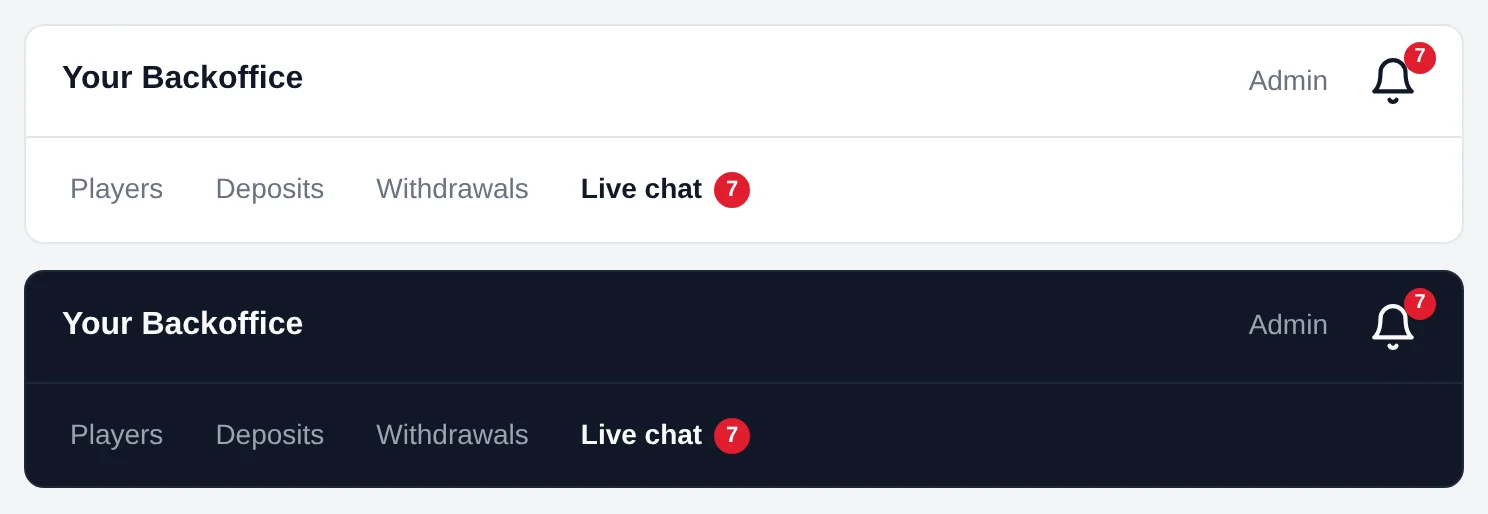
Needs: step 3 done, because it uses the same livechat_console_token() function.
1. Put the bell where you want it, for example in your header next to the staff name:
<span data-livechat-bell></span>2. Add the script to your backoffice layout, so it loads on every page. It calls the server function from step 3 for its token:
<?php $alertsToken = livechat_console_token((string) $staff->id, $staff->name, $staff->email, $staff->is_admin); ?>
<script src="https://chat.example.com/agent-alerts.js" data-op="op_XXXX"
  data-token="<?= $alertsToken ?>" data-link="/livechat" async></script>
Change:
| In the code | Replace with |
|---|---|
https://chat.example.com, op_XXXX |
Your live chat address and operator key, as in step 3. Settings → Install → step 4 has them filled in. |
$staff… |
The same as in step 3 |
/livechat |
The address of your live chat page from step 3 |
A token works only once, so the live chat page makes two: one for the agent screen and one for this script. That is fine: just call the function twice.
Check it works: open any backoffice page other than the live chat page. From another browser, send a chat message on your player site. The bell rings and shows 1, and the browser tab shows "(1) …". Clicking the bell opens your live chat page.
What staff see:
- A bell with a red number: the chats with player messages nobody on the team has opened yet. Opening the chat clears it for everyone; nobody has to reply first.
- A short ring and chime when a player writes (not on the live chat page itself, which chimes on its own).
- The number in the browser tab, such as "(3) Backoffice".
- Desktop notifications when the backoffice is in the background. The first click on the bell asks the staff member to allow them.
The bell takes the colour and size of the text around it. To change them, set color or
font-size on the <span>.
Options to add to the script tag:
| Option | What it does |
|---|---|
data-badge="#menu-livechat" |
Also shows the number on your own element, such as the Live chat menu item (a CSS selector) |
data-popups="on" |
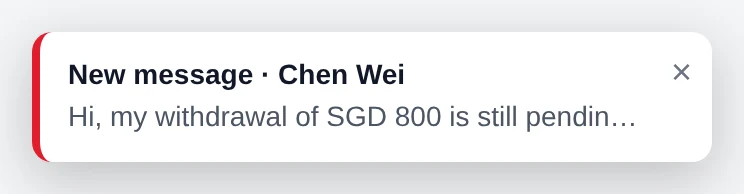
Also shows each new message in a popup in the bottom-right corner |
data-ring="off" |
No ring and no chime. The bell, the numbers and desktop notifications stay. |
data-token-url="/livechat/token" |
An address on your backoffice that returns a fresh token, as plain text or {"token": "…"}. Use it if pages stay open for hours, or if your backoffice is a single-page app. |
If your backoffice sends a Content-Security-Policy header, add your live chat address to
script-src and frame-src.
5. Lock the chat to your websites
No code
Under Settings → Allowed websites, list every address that may show the chat:
- your player site, including mobile and mirror domains (
https://luckycasino.com,https://m.luckycasino.com…); - your backoffice (
https://backoffice.luckycasino.com).
Browsers then refuse to show the chat bubble or the agent screen anywhere else. Until you add addresses, any site may show them, and the agent screen warns about this.
Check it works: your player site and your backoffice page still show the chat. If one of them
stops, its address is missing from the list (check https:// and www.).
Cards
No code Your admins design cards; sending them from the backoffice is the Automatic notices add-on.
A card is a designed message, such as a withdrawal receipt or a welcome panel with links. Your admins design cards once under Settings → Cards. After that:
- agents send them from the chat (the card button next to the message box), filling in a short form;
- with the Automatic notices add-on, your backoffice sends them by itself.
The player sees the card in the chat exactly as designed, on phones and computers. A card is never HTML: it is built from fixed blocks, so nothing in it can run code on your players' screens.
Building blocks
| Block | Use it for | Limits |
|---|---|---|
| Heading | A title such as "Withdraw: @Amount" | 120 characters; colour, alignment, three sizes |
| Text | A line or paragraph | 1,000 characters; colour, alignment, bold, small |
| Links | A row of links, such as [Register] [Reset password] | Up to 10 links of 60-character labels |
| Button | One clear action, such as "Proof of payment" | 60-character label; colour, alignment |
| Image | A banner or a promotion picture | PNG, JPEG, GIF or WebP, up to 5 MB |
| QR code | A payment or download link to scan | 300 characters |
| Copy button | A value the player copies, such as a reference or an account number | 40-character label, 300-character value |
| Notice box | A framed message such as "Important notice" | 80-character title, 1,000-character text |
| Divider | A line between parts of the card |
A card has up to 30 blocks and an optional background colour. Its name is up to 60 characters and must be unique in your account.
Fields: the blanks filled in when sending
Write @ and a name where a value changes from one player to the next: Withdraw: @Amount,
Balance: @Balance. When the card is sent, every field is replaced by its value.
- A field name starts with a letter, then letters, digits or
_, up to 31 characters:@Amount,@Ref2,@Bank_Name. Names are case-sensitive:@Amountand@amountare two different fields. - The same field can appear several times. It is filled once and the value goes everywhere.
- Fields work in every text of a card: headings, text, link and button labels, link addresses, QR codes, copy buttons and notice boxes. Images never take fields.
- A link or button address can be a field (
@ProofLink) or contain one (https://yoursite.com/receipt/@Ref). Once filled, it must be a full web address starting withhttps://orhttp://, or the card is refused. - Values are plain text up to 300 characters, shown exactly as sent: HTML or scripts in a value appear as text.
- Every field must be filled in. Agents cannot send a card with a blank left, and the backoffice gets an error naming the missing fields.
Under Settings → Cards each card lists its fields ("Agent fills in: Amount, Balance…"). With the Automatic notices add-on, each card also has a code for your backoffice, and Settings → Automatic notices lists every card with its code and fields for your developer.
Example: a withdrawal receipt
The ready-made card Withdrawal done is built like this:
| Block | Content |
|---|---|
| Heading | Withdraw: @Amount |
| Text | Balance: @Balance |
| Text (bold) | Done, thank you! |
| Text (small) | Please recommend us to your friends! |
| Divider | |
| Button | label Proof of payment, link @ProofLink |
| Copy button | label Copy, value @Reference |
Its fields are Amount, Balance, ProofLink and Reference. Filled with RM500.00,
RM1,240.00, https://yoursite.com/receipts/88 and W-88, the player sees "Withdraw:
RM500.00", "Balance: RM1,240.00", a Proof of payment button that opens the receipt, and
W-88 with a Copy button.
Add-ons
Extra features your live chat provider switches on for your account. Ask your provider to switch
one on. Until it is on, its page under Settings is hidden and its API answers 403 with the code
FEATURE_DISABLED.
| Add-on | What it does | Developer work |
|---|---|---|
| Automatic notices | Your backoffice posts messages such as "Deposit approved" into players' chats | Backoffice Server code: call one address |
| Player profile | Agents see a player's live details from your backoffice, such as balance and pending withdrawal, beside the chat | Backoffice Server code: add one endpoint |
| Internal notes | Agents keep notes on players that only your team sees | No code |
| Reports | Admins see chats, reply times, busy hours and each agent's work | No code (optional: a backoffice page of its own) |
| Chat history | Admins download one chat, or every chat in a period, as PDF, CSV or text | No code (optional: a backoffice page of its own) |
Automatic notices and Player profile find the player by the player ID from step 2, so do step 2 first.
Add-on: Automatic notices
Backoffice Server code
Your backoffice posts messages into a player's chat by itself, such as "deposit approved" or "withdrawal paid". Players see them with an unread badge, even if they never chatted before. Notices are not work for your agents: a finished chat stays finished, and an open one stays open.
Set it up
- In the agent screen, go to Settings → Automatic notices and make the key. It starts with
lcn_and is shown only once, so copy it straight away. - Set it as
LIVECHAT_NOTICES_KEYon your backoffice server. 🔒 It is a secret: anyone with it can post into your players' chats. - Copy the ready PHP code from the same page. It has your address and your own cards filled in.
- Call it from your backoffice where the event happens, such as right after a deposit is approved.
Make a new key on that page replaces the key at once; Turn off stops all notices.
Send a message
The ready code from Settings → Automatic notices looks like this:
<?php
function livechat_notice(string $playerId, array $notice, ?string $reference = null): bool {
    $ch = curl_init('https://chat.example.com/api/v1/notices');
    curl_setopt_array($ch, [
        CURLOPT_POST           => true,
        CURLOPT_HTTPHEADER     => ['Content-Type: application/json',
                                   'Authorization: Bearer ' . getenv('LIVECHAT_NOTICES_KEY')],
        CURLOPT_POSTFIELDS     => json_encode(array_filter(['player' => $playerId, 'reference' => $reference]) + $notice),
        CURLOPT_RETURNTRANSFER => true,
        CURLOPT_TIMEOUT        => 5,
    ]);
    curl_exec($ch);
    $ok = curl_getinfo($ch, CURLINFO_RESPONSE_CODE) === 200;
    curl_close($ch);
    return $ok;
}

// For example, right after a deposit is approved:
livechat_notice((string) $player->id, ['text' => 'Your deposit of RM100 is approved.'], "deposit-{$deposit->id}");
It sends this request:
POST https://chat.example.com/api/v1/notices
Authorization: Bearer lcn_XXXX
Content-Type: application/json

{ "player": "1001", "text": "Your deposit of RM100 is approved.", "reference": "deposit-5521" }| Field | Required | Meaning |
|---|---|---|
player |
yes | The player ID: exactly the sub your site gives the chat in step 2. Another value, even the same player's username, starts a separate chat the player never sees. |
text |
text or card |
The message, up to 4,000 characters |
card |
text or card |
A card instead of text (below) |
reference |
no, but recommended | Your own ID for this notice, such as deposit-5521. If the same request is sent twice (a retry), the player gets it once. |
site |
only with several websites | The site key of the website the player uses |
The answer:
{ "success": true, "data": { "messageId": "…", "conversationId": "…", "duplicate": false }, "error": null }duplicate: true means a notice with the same reference was already posted, and nothing new
was sent.
Check it works: log in to your player site as a test player, then send them a notice. The chat button shows an unread badge, and the message is in the chat.
Send a card
Give the card's code and every one of its fields,
spelled and capitalised exactly as in the card. For the withdrawal receipt:
livechat_notice((string) $player->id, ['card' => [
    'code'   => 'withdrawal_done',
    'fields' => [
        'Amount'    => 'RM500.00',
        'Balance'   => 'RM1,240.00',
        'ProofLink' => 'https://yoursite.com/receipts/88',
        'Reference' => 'W-88',
    ],
]], "withdrawal-{$withdrawal->id}");
Where to find a card's code and fields: Settings → Automatic notices lists every card with
its code and its fields. An admin can set or change a code in the card's editor under
Settings → Cards. A code is small letters, digits and _, up to 40 characters. The
ready-made cards come with theirs:
| Ready-made card | Code |
|---|---|
| Withdrawal done | withdrawal_done |
| Deposit approved | deposit_approved |
| Welcome | welcome |
Why codes: the notices key tells the chat whose account it is, and withdrawal_done then
means that account's own withdrawal card. Give the card the same code in every account, and one
backoffice works for all of them. Each account may still name and design its card its own way,
and renaming it breaks nothing. Once your backoffice has sent a card, its code is locked for 30
days, so it cannot change by accident.
Instead of code, you may give the card's name exactly as under Settings → Cards
('name' => 'Withdrawal done'), but then renaming the card breaks your notices. Send one or the
other, not both.
When a notice is refused
The answer has "success": false and an error.message that says what is wrong:
| Answer | Message | What to do |
|---|---|---|
401 |
This key is not valid… | The key is wrong, was replaced or turned off: make a new one |
403 |
Automatic notices are not switched on for this account… | Ask your provider to switch the add-on on |
403 |
This live chat account is suspended… | Contact your provider |
404 |
There is no card with the code "…" in this account. | Give one of this account's cards that code under Settings → Cards |
404 |
There is no card named "…" | The card was renamed or deleted: switch to its code |
400 |
Fill in every field of "…": Balance, Reference missing. | Send every field, spelled and capitalised as in the card |
400 |
"…" is not a web address starting with https:// | A field used as a link must be a full address |
400 |
This account has several websites… | Add site with the site key |
400 |
Send either "text" or "card", not both. | Send one of them |
400 |
Give the card's "code" (or its "name"), not both. | Send one of them |
Every refused notice (except 401 and 429) is also listed under Settings → Automatic
notices → Refused notices for 30 days, with the time, player, card and reason, so your admins
see it without your server's logs.
Keep the backoffice and the cards in step
Your backoffice fills a card by its field names. So once your developer uses a card:
| Change under Settings → Cards | Notices with this card |
|---|---|
| Wording, colours, images, the order of blocks | Keep working, with the new design |
| Removing a field | Keep working (a value for a field the card no longer has is ignored) |
| Renaming the card | Keep working when your backoffice gives the card's code; fail with 404 when it gives the name |
| Adding or renaming a field | Fail with 400 until your backoffice sends the new field too |
| Deleting the card | Fail with 404, until another card gets its code |
The Cards page shows Used by your backoffice on every card your backoffice sent in the last
30 days, and asks before saving a change that would break those notices. If you need a different
version, make a new card with a new code (for example withdrawal_done_v2), let your developer
switch to it, then delete the old one.
Add-on: Player profile
Backoffice Server code
When an agent opens a logged-in player's chat, the chat asks your backoffice for that player's details right then and shows them beside the chat. You decide what agents see by what your page answers: balance, pending withdrawal, last deposit, KYC status… always current. Guests have no player ID, so they get no details until they log in.
Set it up
Everything is under Settings → Player profile:
- Make a secret. Set it as
LIVECHAT_PROFILE_SECRETon your backoffice server. 🔒 Never put it in a web page. Make a new secret replaces it at once. - Add one page to your backoffice that answers the chat. Copy the PHP from the settings page (shown below) and fill in your own player lookup.
- Save its address, such as
https://backoffice.example.com/livechat/player.php. It must start withhttps://and be reachable from the internet (not only from your office network). - Try it: type a player ID and click the button. The settings page shows exactly what agents will see, or why it failed.
One page serves all your websites: the request says which one.
The page to add
<?php
// The live chat asks this page for a player's details when an agent opens their chat.
$player = $_GET['player'] ?? '';
$site   = $_GET['site'] ?? '';
$time   = $_SERVER['HTTP_X_LIVECHAT_TIMESTAMP'] ?? '';
$sig    = $_SERVER['HTTP_X_LIVECHAT_SIGNATURE'] ?? '';
$expect = hash_hmac('sha256', "$time.$player.$site", getenv('LIVECHAT_PROFILE_SECRET'));
if (!ctype_digit($time) || abs(time() - (int) $time) > 300 || !hash_equals($expect, $sig)) {
    http_response_code(401); // not from the live chat, or too old
    exit;
}

// Your own lookup: $player is the player ID from step 2.
$p = find_player($player);
if (!$p) {
    http_response_code(404);
    exit;
}

header('Content-Type: application/json');
echo json_encode([
    // Up to 20 rows, shown to agents in this order. 'highlight' marks one in red.
    'fields' => [
        ['label' => 'Balance',            'value' => 'RM' . number_format($p->balance, 2)],
        ['label' => 'Pending withdrawal', 'value' => 'RM' . number_format($p->pending_withdrawal, 2),
                                          'highlight' => $p->pending_withdrawal > 0],
        ['label' => 'VIP',                'value' => $p->vip_level],
    ],
    // Optional: an "Open in backoffice" link for agents.
    'link' => 'https://backoffice.example.com/players/' . urlencode($player),
]);
Change: find_player() to your own database lookup by player ID, the rows in fields to what
your agents need, and the link to your backoffice's player page. Do not remove the signature
check at the top: without it, anyone could read your players' balances.
The request, in detail
GET https://backoffice.example.com/livechat/player.php?player=1001&site=site_XXXX
X-Livechat-Timestamp: 1791100000
X-Livechat-Signature: 5f0c…playeris the player ID, the samesubyour website gives the chat in step 2.siteis the site key of the website the player chats on.X-Livechat-Signatureis the hex HMAC-SHA256 of<timestamp>.<player>.<site>with your secret. Check it with a constant-time comparison (hash_equalsin PHP), and refuse a timestamp more than 5 minutes from your clock, so a recorded request cannot be replayed later.
The answer, in detail
{
  "fields": [
    { "label": "Balance", "value": "RM1,240.00" },
    { "label": "Pending withdrawal", "value": "RM500.00", "highlight": true },
    { "label": "VIP", "value": "Gold" }
  ],
  "link": "https://backoffice.example.com/players/1001"
}fields: up to 20 rows, shown in this order. Alabelis up to 40 characters, avalueup to 200 (numbers are shown as they are).highlight: trueshows the value in red.link(optional): an Open in backoffice link for agents. It must be anhttps://address.- Answer
404when you do not know the player, and401when the signature is wrong.
Answer within 3 seconds, without redirects, in under 64 KB. Agents see why a lookup failed (for example "Your backoffice answered HTTP 401 (check that it uses the current secret)"). An answer is reused for 30 seconds while agents move between chats, and Refresh asks again at once.
Add-on: Internal notes
No code
Agents write notes on a player that the player never sees, such as "promised a bonus refund, check tomorrow" or "prefers Chinese". Notes belong to the player, not to one chat, so the next agent finds them on every later visit.
No developer work. Once your provider switches it on, agents see a Notes section at the top of the player panel.
- Each note shows who wrote it and when. Ctrl+Enter saves; up to 1,000 characters.
- The writer can edit their own note; the writer or an admin can delete it.
- Every agent's screen updates at once when a note changes.
- Notes written while the player chats as a guest move to their account when they log in.
Switching the add-on off hides the notes and keeps them; switching it back on brings them back.
Add-on: Reports
No code
Admins open Reports (the chart icon in the agent screen's side bar, or the ☰ menu), or the backoffice page below, and pick a period (Today, Yesterday, Last 7 days, Last 30 days, This month, Last month, or any dates up to 92 days) and, with several websites, one website or all.
| Figure | Means |
|---|---|
| Chats | Chats a player wrote in during the period |
| Requests | Player questions: a player message after your team's message, or the first one. Several messages in a row are one request. |
| Not answered yet | Requests no agent has replied to |
| Median first reply | Half of the requests were answered faster than this. The average is shown under it. |
| Answered within 5 min | Share of requests with a first reply within 5 minutes |
| Resolved | Chats an agent marked resolved |
| Agent messages, Automatic notices | Messages your team and your backoffice sent |
Below the figures: a chart of requests per day (answered and not), the busy hours of the day for planning shifts, and a table per agent (requests they answered first, their median first reply, messages, chats and resolved). The daily figures and the agent table download as CSV for Excel.
- Days follow the time zone of the admin's computer.
- A reply counts on the day of the request, for the agent who sent it.
- Requests that come in while you are closed wait until you open, which raises the average; the median is the fairer figure.
- Resolved is counted from the day the update that added reports was installed; everything else covers your whole history.
A Chat reports page in your backoffice
Backoffice Optional
Inside your backoffice the chat shows chats only, so managers would have to add &menu=on to
reach Reports from the ☰ menu. Instead, give reports a menu item of its own, like your other reports:
a new backoffice page with the same code as step 3,
with &view=reports added after op_XXXX:
<iframe src="https://chat.example.com/console/?op=op_XXXX&view=reports#sso=<?= $token ?>"
        style="width:100%;height:100vh;border:0"></iframe>
The page shows only the reports: no chats and no menu. Staff who are not admins see a line saying reports are for admins, so you can show the menu item to everyone or only to managers.
Add-on: Chat history
No code
Admins download chats for a payment dispute, a player complaint, a regulator or an audit.
- One chat: open it and use the download button in the chat's header (also at the bottom of Player details). It holds the whole chat, from the first message to the last.
- Every chat in a period: Chat history (the clock icon in the side bar, or the ☰ menu). Pick a period (up to 92 days) and, with several websites, one website or all. Each chat that had messages in the period comes with only those messages.
| Format | What you get |
|---|---|
| Opens the browser's print window: choose Save as PDF. It looks like the chat, with the player's details, the images players and agents sent, and each chat on a new page. Chinese, Malay and emoji come out as on screen. Up to 3,000 messages. | |
| CSV | One row per message for Excel: website, domain, player ID and name, time, from (player, agent or automatic notice), agent, message, image, card. Up to 50,000 messages. |
| Text | One line per message, easy to paste into a ticket or an email. Up to 50,000 messages. |
- Times follow the time zone of the admin's computer, which the download states.
- Messages an agent hid from the player are included and marked with who hid them and when.
- With the Internal notes add-on, tick Include internal notes to add the player's notes, marked as team only. Leave it unticked for anything a player or an outside party will see.
- A player message that starts with
=,+,-or@is written to the CSV as text, so Excel never runs it as a formula. - Only admins can download. Each download is written to the server's log with who made it, what it covered and how many messages it held.
Optional backoffice page. As with reports, a page
with &view=history after op_XXXX shows only the period download, for a "Chat history" item in
your backoffice menu.
Troubleshooting
| What you see | Why | Fix |
|---|---|---|
| No chat button at all | The site key is wrong, the address in src is wrong, or the page's address is not under Allowed websites |
Copy the tag again from Settings → Install; check Settings → Allowed websites. Open the browser console (F12) for errors. |
| Logged-in players appear as "Guest" | data-identity is missing ($player was empty), or the token was refused: wrong or replaced secret, exp in milliseconds instead of seconds, or the server clock is wrong |
View the page source and check data-identity is there; check LIVECHAT_IDENTITY_SECRET matches Settings → Install; make a new token on every page view |
| The same player has two chats | Two different IDs were used for them, such as the ID on one page and the username on another | Always send the database player ID as sub |
| The backoffice page shows a sign-in form | The sign-in token was refused. The message above the form says why: expired, already used, or wrong secret. | Make a new token on every page load (no caching); check LIVECHAT_CONSOLE_SECRET and the server clock |
| The backoffice page is blank | Your backoffice address is not under Allowed websites | Add it under Settings → Allowed websites |
| "Reconnecting" in the agent screen | The live connection (WebSocket) cannot reach the chat server | If your network has a proxy, allow WebSocket Upgrade for /api/v1/*/ws |
| The alerts bell never shows a number | The bell element or script is missing on that page, or the token was already used | Check <span data-livechat-bell> and the script are both on the page; make a separate token for the script |
Automatic notices answer 400 or 404 |
A card field is missing, the card was deleted (or renamed while sent by name), or several websites and no site |
The error message names the problem, and Settings → Automatic notices lists it under Refused notices; see When a notice is refused |
| A notice was sent but the player doesn't see it | player is not the same ID as sub in step 2, so it went to a different chat |
Send exactly the sub value |
| Player profile shows "answered HTTP 401" | The profile page uses an old secret, or the server clock is more than 5 minutes off | Copy the secret from Settings → Player profile again; fix the clock |
An add-on page is missing from Settings, or its API answers 403 FEATURE_DISABLED |
The add-on is not switched on for your account | Ask your live chat provider |